

Choosing a PDF editor for your Windows workflow
The right PDF tool depends on what you actually do with documents, not on which name you have heard most often. This guide maps common Windows tasks to the kind of editor that handles them, with notes on Windows 11 behaviour and offline work.
Start with your most frequent taskWhere the three tools land on the tasks people bring to this desk
PDF Gear
Desktop editing of existing text and pages.
Strongest match for rewriting a document
iLovePDF
Merging, splitting and compressing in a browser tab.
Quick when uploading is acceptable
Smallpdf
Assembling, shrinking and short form tasks in a tab.
Fewest steps for a one-off job
The verdict rule sits under the task columns it decides; the same rule closes this page.
Start with the task, not the tool
Write down the one thing you do most often with PDFs. Correct text in a contract? Merge a dozen scans? Fill a form and sign it? Compress a file so it fits an email limit?
That single answer eliminates most of the market. Everything else is refinement, and refinement is where people spend money on capability they will never open twice. If your week is mostly one task, the tool that does that task well is the whole decision.
Write the task on the top line of a sheet of paper. Every later question on this page is answered against that line.
Rewrite or restructure a document
Desktop editor
Merge scans, split or compress
Browser toolkit
Fill a form and sign once
Either route
Read scans you cannot search
Test both
Remove sensitive content for good
Desktop editor
Work where there is no reliable connection
Installed editor
Two of these six answers are the same answer. That is not an accident: the tasks that touch a document's contents tend to need an installed editor, and the tasks that only rearrange files rarely do.
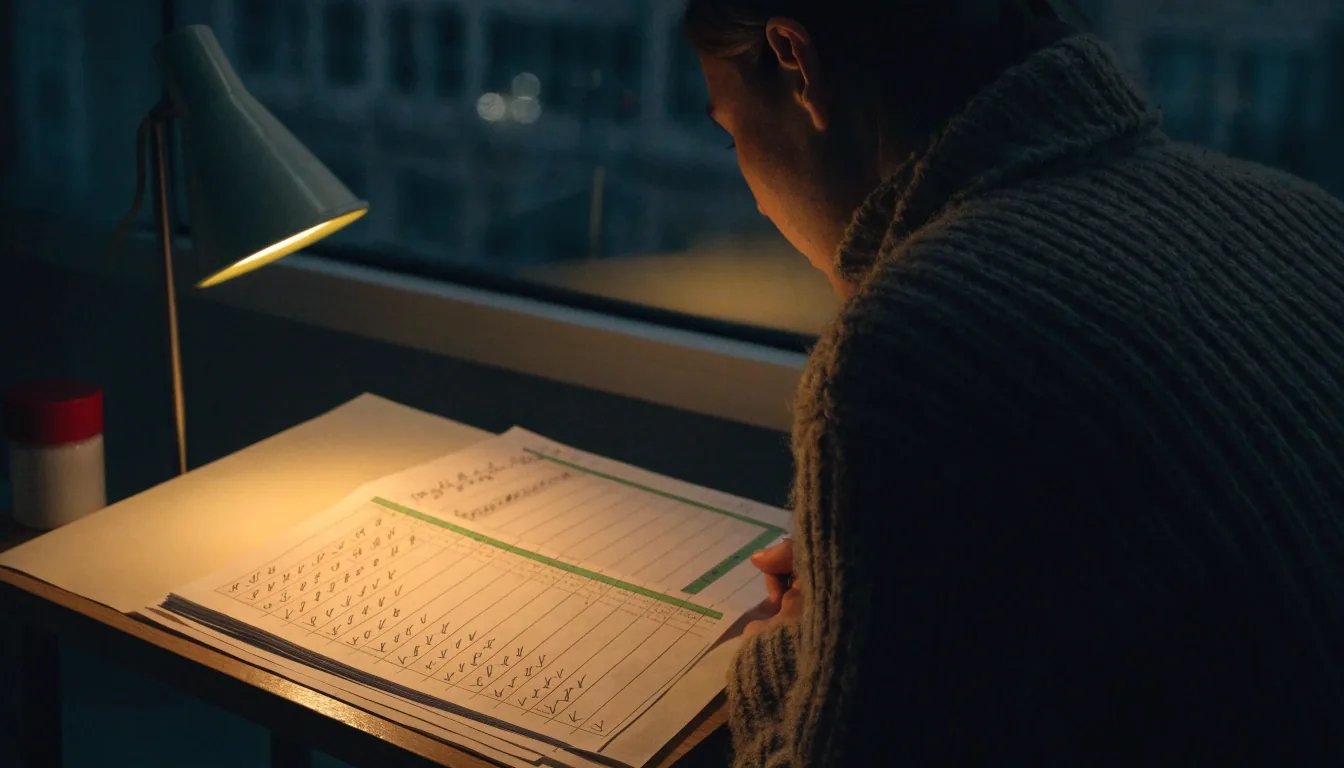
Four task chapters: text, files, forms, and the documents you cannot let leave the room
Changing text in an existing document
If you need to rewrite a paragraph, correct a figure, or move a section to a different page, you need a desktop editor. Browser toolkits add layers and rebuild pages; they do not reach into the text that is already there. When people tell us a PDF editing tool "would not let me type", this is almost always the gap they hit.
PDF Gear sits in this bracket, and so do PDF-XChange Editor and Foxit PDF Editor. These are the tools worth comparing when document editing is the core of your work rather than the occasional exception. A PDF editor for PC that installs locally also keeps the document on your machine while you work, which matters if the file belongs to a client.
Test the specific edit you need before you commit to anything: select a sentence, change one word, and see whether the paragraph reflows sensibly. Editors differ in how gracefully they handle a changed line, and that difference shows up on your own document in about a minute.
Merge, split, compress
For assembling and shrinking files, browser toolkits are quick and hard to beat. iLovePDF and Smallpdf both handle these jobs in a tab with minimal friction, and neither asks you to learn a new interface first. PDF24 Creator covers similar ground as an installed Windows toolkit if you would rather keep everything local.
Either route works. Pick based on whether the document is allowed to travel off your machine, not on which one has more buttons.
Forms and signing
Occasional form filling and signing work well in a browser. The steps are short, nothing needs installing, and that is exactly what a monthly contract review calls for. For a handful of forms a year, a tab is the sensible home.
Heavy form processing, especially when the same template comes back with different names, is worth testing on a desktop editor before you decide. Repetition exposes friction that a single trial never shows.
OCR on scanned documents
Recognition support varies in depth from tool to tool. Clean digital scans convert reasonably well almost everywhere; poor photocopies need corrections no matter which editor you open them in. That is a property of the scan, not of the tool.
If scanning is central to your work, test a candidate on your own worst document rather than the cleanest sample you can find. The worst page is the only fair test.
The three editors side by side
Strengths and limits as they show up on real Windows work, task row by task row. Nothing here is a score, and none of these tools wins every row.
| Task on Windows | PDF Gear | iLovePDF | Smallpdf |
|---|---|---|---|
| Change text already in the document | Built for it. Installed on Windows 11, edits existing paragraphs and figures. | Not the job. Adds layers on top of the page instead of rewriting it. | Not the job. Same browser limit as the other toolkits. |
| Merge, split and compress | Handles it, with a little more setup than a single-purpose page. | Fast and direct in a tab. The shortest path for a one-off merge. | Also fast in a tab, with a tidy set of small file jobs. |
| Fill a form and sign it | Comfortable, and better once the same template repeats. | Short and clear for occasional forms. | Short and clear for occasional forms. |
| Recognise text in a poor scan | Available; test it on your worst page before trusting the result. | Available; clean digital scans fare better than photocopies. | Available; same caveat about the quality of the original. |
| Work with no connection | Runs locally once installed, so the file stays put. | Needs a connection and moves the file to a server. | Needs a connection and moves the file to a server. |
The green rule marks the row where the choice is usually decided: whether the document is allowed to leave your machine.

The browser route, in the room where most people actually use it
Redaction, Windows 11, and offline work
Redaction should remove the underlying text, not cover it. Some tools handle this properly and some only approximate it, and the difference matters a great deal if you work with regulated material or client files. Installed desktop editors generally have the stronger story here, but verify the behaviour on a test document before you rely on it for anything that leaves your organisation.
A desktop editor installs once and then runs locally, which means no connection is required and there is no upload step. On Windows 11, PDF Gear, Ashampoo PDF Pro and the other installed editors behave like normal programs: they appear in the Start menu, they open files from File Explorer, and they keep working when the network drops. If you have moved from an older Windows release recently, that familiarity is worth more than it sounds.
Browser tools require a connection and a transfer of the file to a server. Neither approach is inherently better. Offline capability is a hard requirement in some workplaces and a complete non-issue in others, and only you know which one you are standing in. The honest test is simple: if your connection vanished for an hour, would the document you are working on right now be a problem?
One more Windows 11 detail worth checking during a trial: whether the tool integrates with the right-click menu in File Explorer, and whether it can be set as the default handler for PDF files. Small conveniences like that decide whether a PDF tool for Windows gets used daily or gets forgotten after a week.
Budget and long-term value
Long-term value comes from fit, not from a feature count. A tool that matches your most frequent task will still be useful in a year; one chosen for an impressive list you never touch will not. This is the quiet reason people end up paying twice: they buy the longest feature list and then keep using the same two functions.
Think about what you will still be doing monthly, then choose for that. Occasional users rarely need the deepest desktop suite, and daily editors rarely stay satisfied with a browser tab. If your work sits somewhere in the middle, start with the lighter option and move up only when you can name the task it fails at.
Two habits make the decision cheaper. First, list the last five documents you worked with and what you did to each one. Second, notice whether any of them were not allowed to leave your machine. Those two lists answer the budget question before you look at a single feature comparison.

A short decision path
Three questions, a few minutes, and you skip the usual cycle of installing something, discovering it cannot do the job, and starting over. Read them in order; each one narrows the field.
If you would rather talk it through, the review desk also runs paid one-hour consultations for help with the editors compared on this site.
Name your most frequent PDF task
Editing text points to an installed desktop editor. Rearranging files points to a browser toolkit. If it is a genuine tie, the next question decides it for you.
Decide whether the document may leave your machine
If it may not, you are choosing between installed editors, and offline capability stops being a preference and becomes a requirement.
Pick the category, then read the matching review
Start with the review for the tool whose category already matches, and test it against one real document from your own week before you decide.
That sequence takes a few minutes and saves the usual cycle of installing something, discovering it cannot do the job, and starting over.
Questions people ask at the desk
The three questions that come up most often when someone is standing at the start of this decision. If yours is not here, the consultation page explains how to get a direct answer.
Which editor can change text inside an existing PDF on Windows 11?
A desktop editor such as PDF Gear, PDF-XChange Editor or Foxit PDF Editor. Browser toolkits generally cannot reach into existing text, which is the single most common reason someone is told an editing tool did not work for them.
What is the difference between editing, annotating, and filling a form?
Editing changes the document's content. Annotating adds comments on top of it without altering the page. Form filling completes fields that already exist in the file. The three feel similar on screen and require very different tools.
Which tools work offline?
Installed desktop editors work offline once they are on the machine. Browser tools such as iLovePDF and Smallpdf require a connection and move the file to a server to do their work. If your workplace forbids that transfer, the offline question answers itself.
Still deciding between two tools?
Bring the task, not the feature list. A one-hour consultation is $15 and covers which of these editors fits the documents you actually handle, how to approach a Windows 11 setup, and what to test before you commit. We do not sell the programs and take no commission from any of them.
If you would rather start with reading, the comparison table lists the same three tools with their strengths and limits side by side, and the individual reviews go deeper on each one.
Consultations run Monday to Friday, 9:00 AM to 6:00 PM Pacific Time. Write to [email protected] or call +1 213-587-8903 to arrange an hour. The review desk is at 4827 Sunset Boulevard, Los Angeles, CA 90027.
Before you book
Have one document task in mind and, if you can, the name of the tool you are weighing against it. That is enough to make the hour useful from the first few minutes.

One hour, one task, and a desk that is quiet at the end of the day
This page is part of an educational review desk. We compare tools, explain what each one is good at, and take no position for any program mentioned here. There are no files to collect on this site; everything is text and images.
Back to the review desk home